Tracking EBC Pageviews with Optiwise.ai
EBC page views help the users know the number of shoppers who have seen their EBC content and can help them understand the increase in visibility and customer engagement. EBC page views can be seen on multiple pages throughout Optiwise.ai and can be used to gather various insights.
A) Catalog Page
1. Users can see the EBC page views on the summary card of the Catalog Page.
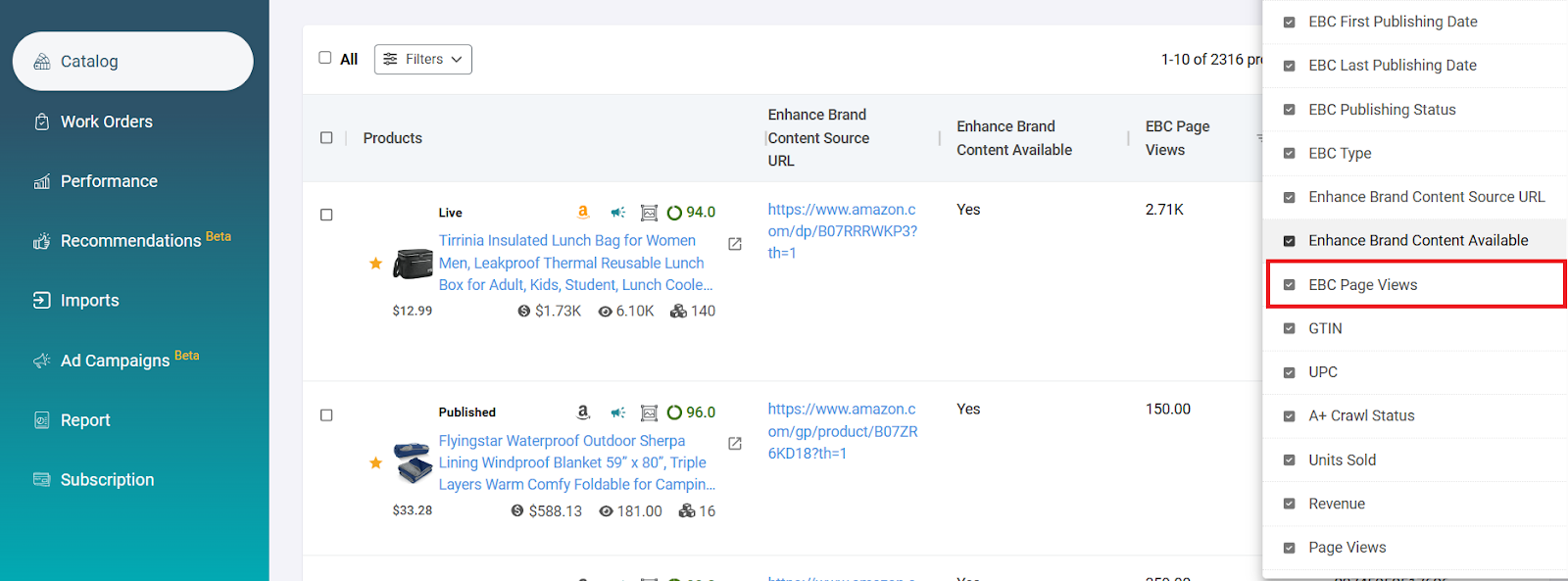
2. Alternatively, users can view the EBC page View details for every product in the catalog page grid by selecting the “EBC Page Views” checkbox by clicking the “Choose Column” button.
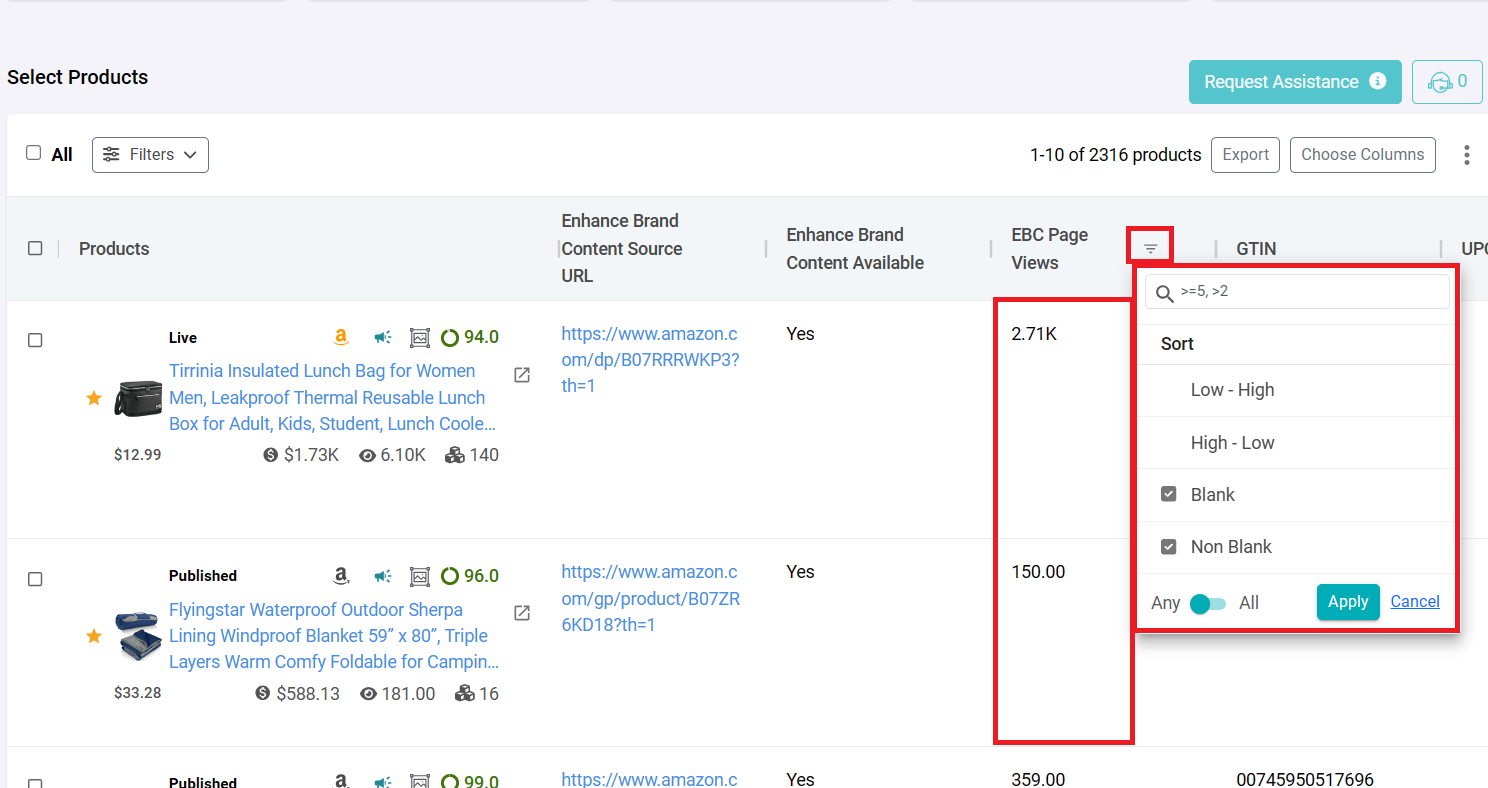
3. Users can also apply sorting on the EBC Page Views column on the catalogue page grid to view the Items with the most page views.
B) Product Details Page
1. Select a product from the catalog page and navigate to the Product Detail page. In the Analytics section, EBC Page Views can be seen, both in graphical form and numeric.
2. Users can also compare the EBC page view data, by selecting a value from the compare dropdown in the analytics section.
C) Product Analytics Page
1. Click on the “View Details” button in the Analytics section of the product details page.
2. A new page “Product Analytics” will open, where the user can see the EBC page view details.
3. You can also change the time duration from the “Duration” dropdown on the top of the page.
D) Subscription Page
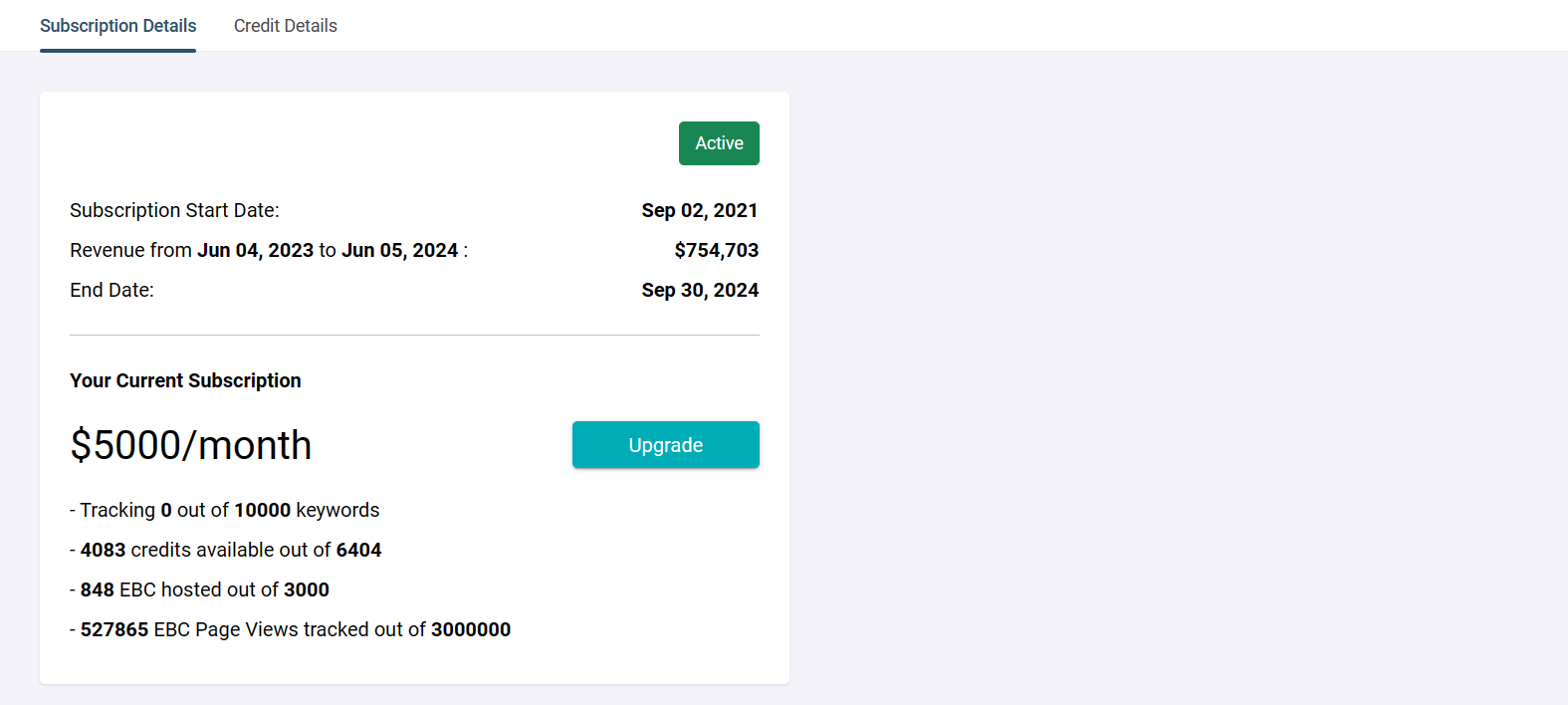
Users can see the EBC Page view data on the subscription page also. It provides information about the number of EBC Page Views tracked out of the total number of EBC page views available to the users
To know more about Enhanced Brand Content, click here.
For any queries, contact us at support@optiwise.ai.